Windows Claude Code Installation Tutorial: 2025 Latest Complete Guide (Node.js Environment Setup + Troubleshooting)
Keywords: Windows Claude Code install, Claude Code Windows tutorial, Claude Code plugin installation, Node.js Claude Code setup, GAC Claude Code authorization, Claude Code API Key configuration
Claude Code is a powerful AI coding assistant that can be integrated into IDEs (such as VS Code) on Windows to boost development productivity. This tutorial details two ways to install Claude Code on Windows: GAC in-site authorization install (recommended for IDE plugin integration) and API Key configuration install. Whether you're installing for the first time or troubleshooting an issue, this guide walks you through deployment step by step. The tutorial is based on a Node.js 18+ environment to ensure compatibility. Before installing, please have a VPN/proxy tool ready (some steps require accessing external resources).
Note: Installing Claude Code requires Node.js, npm, and Git. The entire process needs no complex proxy configuration, but you may need to disable your VPN during the authorization step to avoid interference. Estimated installation time: 10-15 minutes.
Installation Method 1: GAC In-Site Authorization (Recommended for IDE Plugin Users — Pick One Method)
This method authorizes through the GAC official site and is quick and simple, ideal for first-time users. If you use the Claude Code plugin in your IDE, choose this method first.
1. Verify Your Windows System Environment (Node.js, npm, Git)
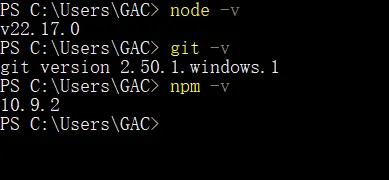
First, make sure the following tools are installed on your Windows system. Open Command Prompt (CMD) or PowerShell and run these commands to check versions:
node -v    // Node.js version must be 18 or higher
npm -v
git -v- If the commands output valid version numbers, your environment is ready.
- Download links:
If the npm command errors out (permission issue), run the following PowerShell command to set the execution policy:
Set-ExecutionPolicy RemoteSignedType Y to confirm.
2. Install Claude Code
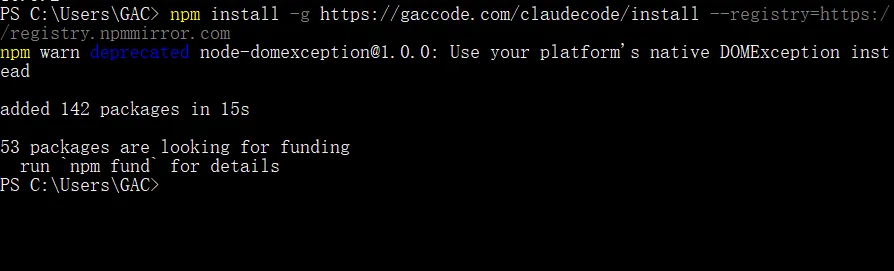
Once the environment is ready, run the following npm global install command (using a domestic mirror for speed):
npm install -g https://gaccode.com/claudecode/install --registry=https://registry.npmmirror.comInstallation may take a few minutes; once it finishes, you're ready to go.
3. First Login and GAC Authorization Verification
After installation, run the following command to log in:
claude login- On first use, GAC will pop up a browser window asking for subscription verification. Complete the authorization in the browser (no proxy needed).
- If it doesn't pop up automatically, manually copy the link in the command line and open it in your browser. After authorizing, copy the verification code from the web page back to the command line and press Enter to continue.
- After logging in, choose a theme and allow Claude Code to access the files in the current directory.
Authorization success means you're done! 🎉
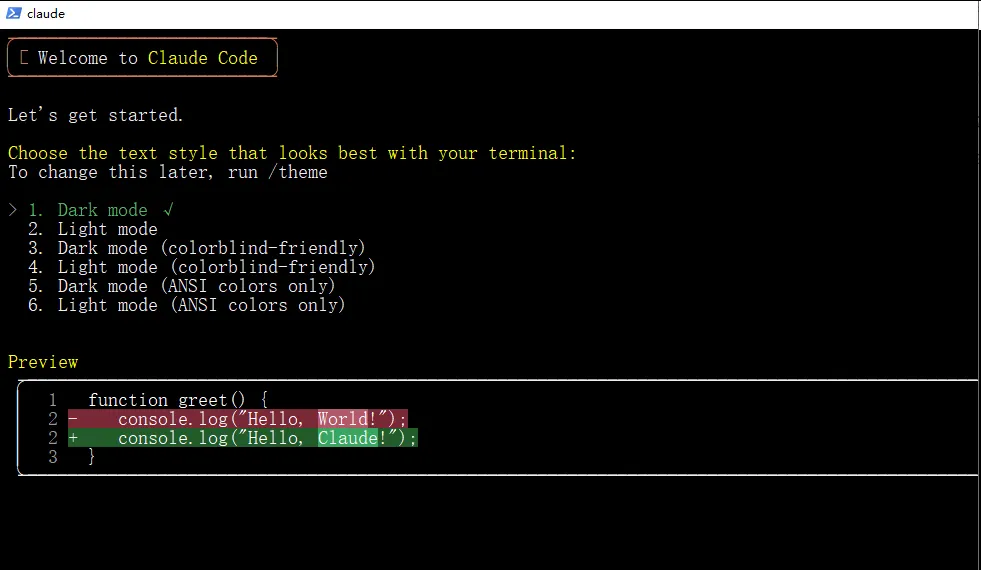
Congratulations! Claude Code has been successfully installed and deployed. You can now use it directly from the command line or integrate it into an IDE plugin to speed up your coding.
4. Common Troubleshooting (Method 1)
- Authorization failure: Turn off your VPN or local proxy, restart the terminal, and run
claude loginagain. - Error "401 No valid credentials provided" (if you previously used another service):
- Delete the environment variables: Win + R > enter
sysdm.cpl> Advanced > Environment Variables > User variables > delete all variables starting with ANTHROPIC > Save > open a new command line and runclaude login. - Or edit the JSON config: navigate to the
C:\Users\your-username\.claudefolder, modify or deletesettings.json, then retry logging in.
- Delete the environment variables: Win + R > enter
Installation Method 2: API Key Configuration (Suitable for Users with Custom Keys)
This method gets an API Key from the GAC official site for configuration, offering more flexibility. It suits users who need precise control over access.
1. Verify Your Windows System Environment (Node.js, npm, Git)
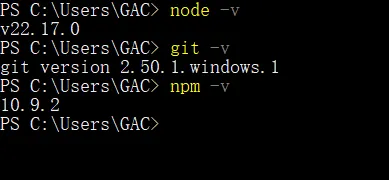
Same as Method 1 — run the following commands to verify:
node -v    // Node.js version must be 18 or higher
npm -v
git -vDownload links are the same as above. If npm errors out, run Set-ExecutionPolicy RemoteSigned and confirm with Y.
2. Install Claude Code
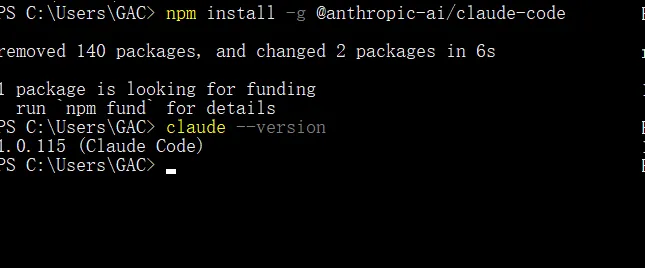
Run the official npm install command:
npm install -g @anthropic-ai/claude-code
claude --versionCheck the version output to confirm the installation succeeded.
3. Configure Your API Key
- Get your key from the API Key section on the GAC official site (gaccode.com).
- Navigate to the
C:\Users\your-username\.claudefolder, modify or create asettings.jsonfile, and add the following content (replace with your actual key):
{
  "env": {
    "ANTHROPIC_BASE_URL": "https://gaccode.com/claudecode",
    "ANTHROPIC_API_KEY": "你的API密钥"
  }
}4. Configure jq (Optional, Run in Git Bash; Requires VPN/Proxy)
Most users can skip this step. If Claude Code runs normally after Step 3, ignore this section.
In Git Bash, run:
curl -L https://github.com/stedolan/jq/releases/latest/download/jq-win64.exe -o /tmp/jq.exe
mkdir -p ~/bin
mv /tmp/jq.exe ~/bin/jq.exe
export PATH=$PATH:~/bin
jq --versionThen set the environment variables:
export ANTHROPIC_BASE_URL=https://gaccode.com/claudecode
export ANTHROPIC_API_KEY=你的API密钥Update the configuration file:
(cat ~/.claude.json 2>/dev/null || echo 'null') | jq --arg key "${ANTHROPIC_API_KEY: -20}" '(. // {}) | .customApiKeyResponses.approved |= ([.[]?, $key] | unique)' > ~/.claude.json.tmp && mv ~/.claude.json.tmp ~/.claude.json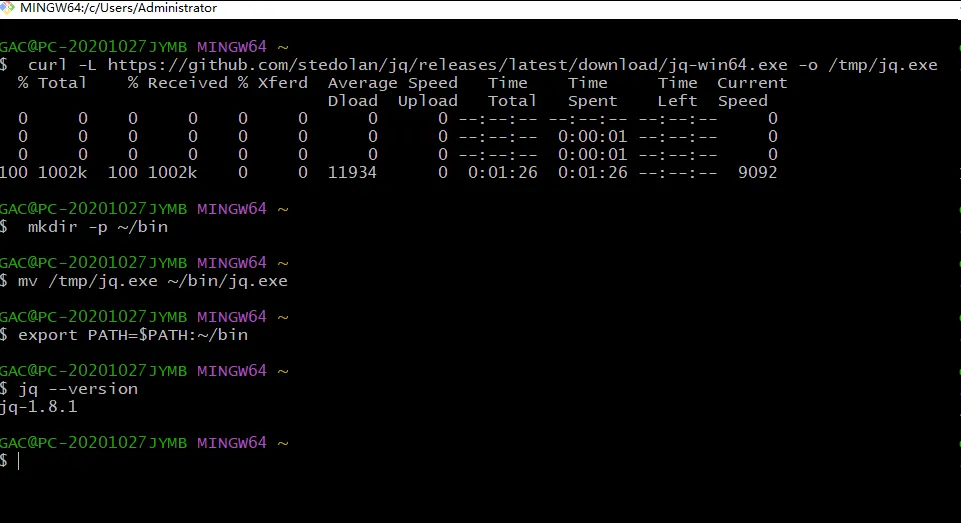
5. Log In to Claude Code and Integrate with Your IDE
After configuration, open a new PowerShell or CMD window and run:
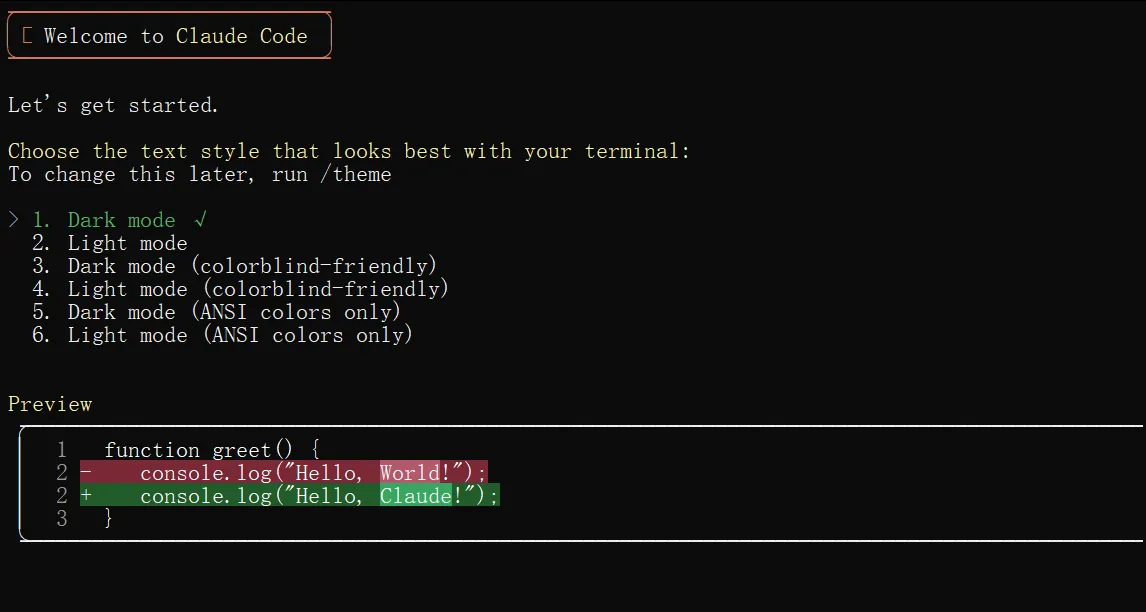
claude login- Choose a theme and allow access to directory files.
- IDE integration: Search for the "Claude Code" plugin in the extension marketplace of VS Code or another IDE and install it with one click. Once configured, you can launch it.
Additional IDE configuration: create or modify config.json in C:\Users\your-username\.claude:
{
  "primaryApiKey": "你的API密钥"
}
Congratulations! Claude Code has been successfully installed and deployed. Now enjoy the fun of AI-assisted coding! 🎉🎉🎉
6. Common Troubleshooting (Method 2)
- Login error "country/region not supported": Enable TUN or virtual network adapter mode in your VPN.
- Missing API Key: Check that
settings.jsonis configured correctly, and retry in a new terminal or IDE. - jq configuration failure: Make sure Git Bash is installed, then restart your terminal.